

By default, every Simbase SIM sits behind a NAT gateway with a private IP. Outbound connections work; inbound connections don't. Assigning a Public IP removes the NAT for that SIM, giving it a routable, fixed public address that you (or anyone with the firewall rules to allow it) can reach from the internet.
Common reasons to assign a Public IP:
remote SSH into a router.
configuring a gateway from your laptop.
hosting a service on the device.
running a VPN endpoint.
integrating with a partner system that needs to push to the device.
| SIM profile | ICCID | APN to use with Public IP |
|---|---|---|
Black, Red, Green | 89103* | fixedip.us (US breakout) OR fixedip.eu (EU breakout) |
Blue, Yellow, Cyan | 89445* | fixedip.m2m |
Black, Red, Green
Blue, Yellow, Cyan
See Set up the Simbase APN for the full APN matrix and configuration steps.
Assign a Public IP
Sign in to dashboard.simbase.com.
Open the SIM you want to give a Public IP.
Click Assign Fixed IP.
Choose the breakout location (Black, Red and Green profiles only — 89103* range SIMs).
Click Activate Public IP.
Provisioning typically takes up to 2 minutes. Assigning a fixed IP also ends the SIM's current data session, so the device drops offline while the gateway deploys. Don't make further changes during this window. Once the dashboard shows the IP as ready, reboot the device or use Reset connection so it reconnects using the fixed IP APN for its profile.
Device-side firewall: don't forget
The Public IP makes the SIM reachable. The device may still have its own firewall blocking inbound traffic. Common scenarios:
A Linux device with
iptablesdefaults that drop unsolicited inbound packets.A router (Teltonika, GL.iNet, Fritz!Box) with a WAN firewall enabled.
An OS-level firewall (Windows Defender, macOS firewall) blocking the service port.
If you've assigned a Public IP, opened the gateway firewall, and still can't reach the device, the device-side firewall is the next thing to check. Consult the device manufacturer's documentation.
Billing implications
Daily fee per assigned Public IP. The fee is billed regardless of SIM state. A disabled SIM with a Public IP still costs the daily Public IP fee until you release the IP.
Inbound traffic is billable. Just like outbound traffic, inbound packets that reach the device through the Public IP count toward your data usage. If someone on the internet sends a high volume of inbound traffic (legitimate or not), you'll be charged for it.
Releasing the Public IP stops the daily fee from the release date forward. See Release a Public IP below.
Release a Public IP
Open the SIM in the dashboard.
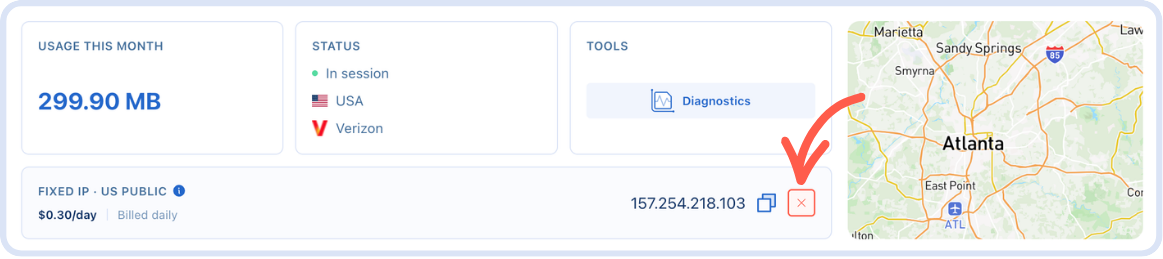
Click the red Release IP button (see screenshot below).
Confirm.
After release, the SIM goes back to a NATed private IP.
Common questions
Yes. An assigned Public IP is static for the SIM and stays the same for as long as it's assigned. Releasing and re-assigning within a few minutes usually returns the same address, but that isn't guaranteed, so don't depend on it.
No, not directly. Release the IP from the source SIM, then assign a new Public IP to the destination SIM. It will likely be a different IP.
Up to 2 minutes. Don't make further changes during this window.
Check three things, in this order: the APN has been changed to the fixed-IP value for your profile, the device has been rebooted or the connection reset since the IP was assigned, and the device's own firewall allows inbound traffic on the port you're using.
Yes, in both directions, including traffic you didn't ask for. A device exposed to the public internet will attract scanning and probe traffic, and that counts toward usage. Consider a usage limit on SIMs with a Public IP.
A Public IP is billed for as long as it's assigned, whether the SIM is enabled or not. Disabling stops the daily SIM fee but not the IP fee. Release the IP to stop it.
Related
IP addresses — IPv4 basics and how subnets work
Private vs public IP address — what's reachable from the internet
Network Address Translation (NAT) — how one public address serves many SIMs
Set up the APN — the fixed-IP APN value for your profile
VPN — reach devices without a public IP


© 2026 Simbase. All rights reserved.