

A tag is a label you stick on a SIM card. SIMs can have any number of tags, and each tag can be applied to as many SIMs as you want. Tags don't change anything about how the SIM works. They're purely organizational, and they make every other dashboard feature (filtering, bulk actions, reporting) work better at scale.
This article covers how to create tags, apply them, filter by them, and delete them when they're no longer useful.
What to tag
There's no fixed taxonomy. Pick whatever cuts your fleet usefully. Common patterns:
Customer:
acme-corp,globex,initechProject or product:
tracker-v2,meter-rollout-2026Location or region:
germany,manchester-warehouse,route-66Deployment phase:
staging,production,field-testHardware:
teltonika-rut240,quectel-bg96Internal owner:
ops-team-1,eng-fleet
Apply a tag
From the SIM detail page
Open the SIM in the dashboard.
Find the Tags box (usually top-right).
Click the three-dot menu in the Tags box.
Pick an existing tag from the list, or Create new to make one on the fly.
Click Apply.
During SIM registration
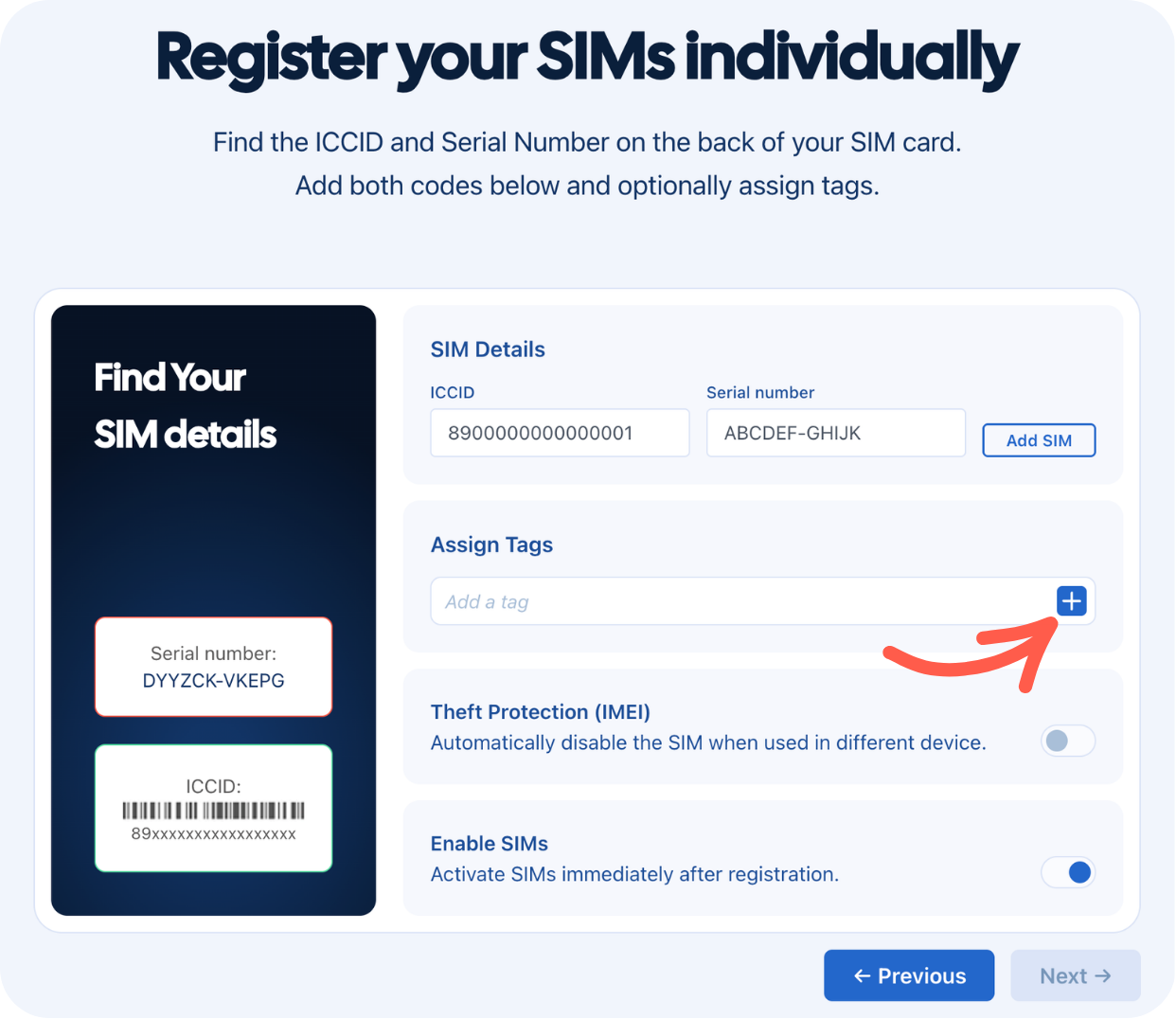
When you register a SIM (individually or in a batch), there's an optional tags step. Add the relevant tags then. It saves a round-trip later.
In bulk from the SIM cards section
Open SIM cards.
Filter or search to narrow down, then select the SIMs you want to tag.
In the action bar, click Assign SIMs.
Pick existing tags or create new ones.
Apply.
Bulk tagging is the fastest way to retro-fit a tagging scheme onto an existing fleet.
Filter and report by tag
Once your SIMs are tagged, you can use tags to scope what you see:
Open SIM cards.
In the Filter panel, find the tags section.
Select one or more tags. The list updates to show only SIMs that match.
Selecting two tags shows only SIMs that have both. To find SIMs with either tag, filter for each separately or use the API.
To export the filtered list:
Run your filter.
Click Export in the action bar.
The export contains every SIM matching the filter, with ICCID, status, plan, usage, and tags.
Bulk-act on a tag
Filtering by tag is the prelude to almost every bulk action. Common workflows:
Filter by tag → select all → Disable (for example, end-of-contract for a customer).
Filter by tag → select all → Change plan (for example, all
eu-trucksmove from USA to Europe coverage).Filter by tag → select all → Send SMS (for example, command all
firmware-v1.4devices to reboot).
See SIM state, Coverage, and SMS for the individual bulk actions.
Delete a tag
From the SIM detail page
Remove the tag from a single SIM without affecting other SIMs that have the same tag:
Open the SIM.
In the Tags box, click the X next to the tag.
From the bulk Assign menu
Permanently delete a tag from your account:
Select one or more SIMs in SIM cards.
Click Assign SIMs in the action bar. Your selection only determines where the menu opens from. Deleting a tag here removes it from every SIM in the account.
Hover over the tag you want to delete and click the bin icon next to it.
Confirm.
Common questions
No practical limit. SIMs in large fleets routinely carry 5 to 10 tags.
Not directly. Workaround: create the new tag, apply it to everything that had the old one (filter + bulk assign), then delete the old tag.
Yes. Tag operations are available through the API. Useful for syncing tags with an external system of record (CRM, asset register, and so on).
Tags are private to your Simbase account. They don't appear on invoices or in any externally-visible output.
Related


© 2026 Simbase. All rights reserved.