

Most Simbase accounts aren't used by just one person. This article covers inviting colleagues, what each role can do, and removing access when someone leaves the team.
Add a user
Open the dashboard.
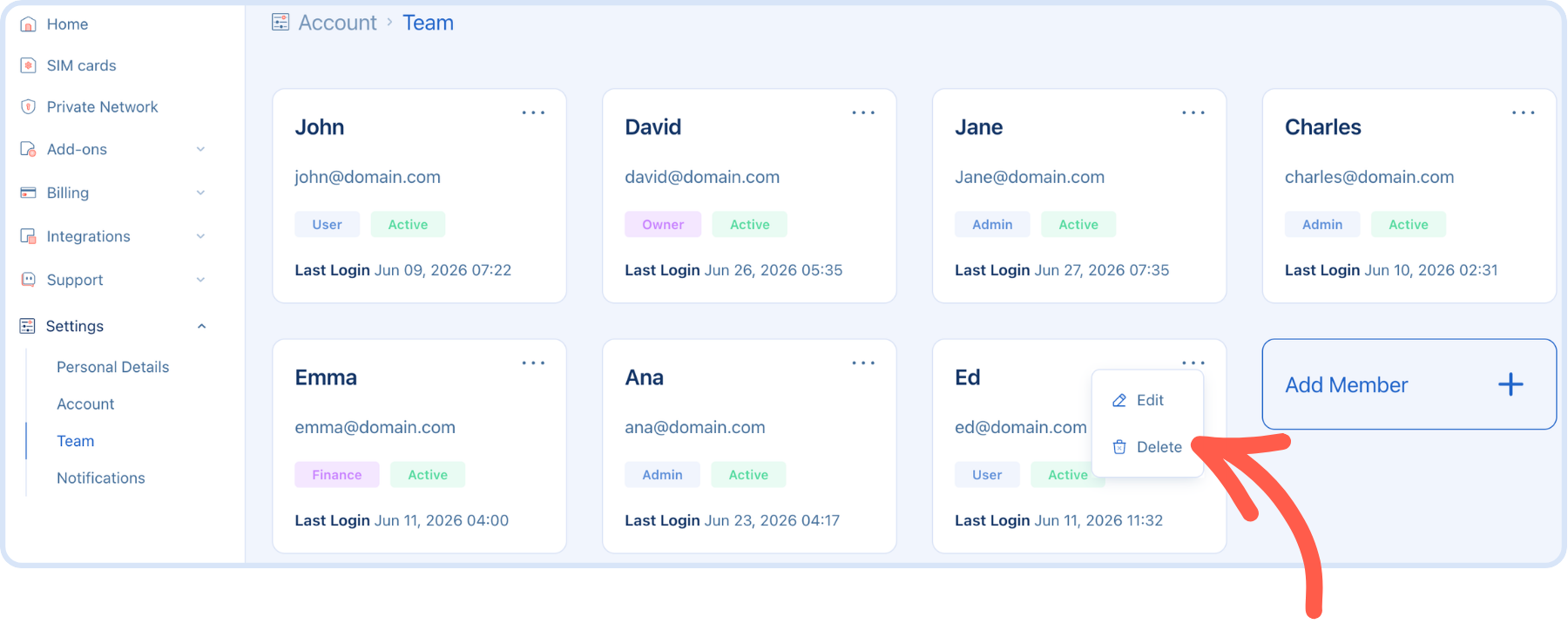
Go to Settings → Team.
Click Add member.
Enter their email address and choose a role.
Send the invite.
The person receives an email with a link to set their own password. They sign in with their own credentials. There's no shared login.
Roles
| Role | Can manage SIMs | Can manage users | Can manage billing |
|---|---|---|---|
Owner | Yes | Yes | Yes |
Admin | Yes | Yes | Yes |
User | Yes | No | No |
Finance | Yes | No | Yes |
Owner
Admin
User
Finance
Owner is the account creator and is not an assignable role. There's one Owner per account, and it can't be removed, though it can be transferred. Contact support if you need to transfer ownership, for example when the employee who created the account leaves.
Admin has the same day-to-day capabilities as Owner: managing SIMs, inviting and removing users, and accessing billing.
User can manage SIMs (register, enable/disable, configure usage limits, tags, and so on) but can't see billing or manage other users.
Finance can manage SIMs and has access to billing settings.
Pick the role that matches what someone actually needs to do. It's easy to invite someone as a User and upgrade them to Admin later if their responsibilities grow.
Change a user's role
Go to Settings → Team.
Find the user in the list.
Click the three dots → Edit → and select the new role.
The change takes effect immediately. On their next action in the dashboard they'll have the new role's permissions.
Remove a user
Go to Settings → Team.
Find the user.
Click the three dots → Remove.
Removing a user revokes their sign-in immediately. They keep no residual access. If they need it back later, they'll need a new invite.
Common questions
No, there's exactly one Owner per account. Admins have nearly identical capabilities, so for most teams an Admin role covers what a "second owner" would need. To transfer ownership itself (for example, the founding employee is leaving the company), contact support.
Remove their user from Settings → Team immediately. This revokes dashboard access right away. If they had MFA or a passkey configured on a shared device, also review Account security for that device.
Not at the moment. Roles apply account-wide. If you need to segment access by fleet or customer, consider separate Simbase accounts. Contact sales to discuss.
Ask them to check spam first. If it's still missing, remove the pending user from Settings → Team and re-invite, checking the address for typos.
Related
Account security — MFA and passkeys for each user
Account balance and invoices — who can see balance, top-up history, and invoices
Account timezone — the other account-level setting, so dashboard timestamps match your team's working hours


© 2026 Simbase. All rights reserved.